Start here: what you’ll learn (and how to stay safe)
You know that little jolt of panic when an app eats your money, logs you out, or just acts weird? Now make that money crypto. Yeah. Different level of stress.

This guide is for that moment.
If you are brand new to Coinbase customer service, or even new to Bitcoin in general, we are going to walk through it slowly, in plain English. No tech talk. No hype. Just clear steps you can follow.
Here is what you will learn in this article:
- How to contact Coinbase support in safe ways
- The exact support options Coinbase offers, like live chat and help center
- What is real Coinbase, and what is a Coinbase scam text or fake support number
- Simple checks you can do before you click any link or give any info
- Basic info on Coinbase products, like normal accounts, Coinbase business account options, and how they fit into your Bitcoin journey
- How to stay calm and organized when something feels wrong with your account
As of 2026, Coinbase lists help options like phone, live chat, social channels, and a big knowledge base that covers common problems, which you can see in this Coinbase help contact overview. We will explain how to use those the safe way, step by step.
We will also look at scams, because sadly, there are a lot of them. Fake “support” people may call you, DM you, or send you a scary text that looks like a real Coinbase news alert about your account. Coinbase itself warns that you should never trust random calls and that you should only reach support through the official website, as they explain in their own guide on spotting and stopping support scams.
To make this easier to follow, we will break things into small chunks:
- First, a simple map of how real Coinbase support works
- Next, common issues total beginners face, like login trouble or confused transfers
- Then, safety basics, so you do not give your password, codes, or seed phrase to the wrong person
- And finally, how a learning tool like Bitcoin Walkthrough can give you a clear path from “I have no idea what I am doing” to “I know how to use Coinbase and Bitcoin safely”
If you like to learn by watching, there is also a short video guide that walks through how to contact Coinbase support, which you can watch here:
How To Contact Coinbase Support Easily (HELP GUIDE) (2026)
By the end, you should know:
- Exactly where to click or tap to reach real Coinbase customer service
- What to say, what to write down, and what not to share
- How to spot fake numbers or sketchy “help” sites that pretend to be Coinbase
- How all of this fits into your bigger Bitcoin learning path, from your first Coinbase account to safer long term use
So take a breath, grab a pen, and let’s solve this together.
Coinbase, in simple terms: what it is and which product beginners use first
Let’s keep this super simple.
Think of Coinbase like a big “on ramp” from your normal bank money into Bitcoin and other coins.
You use your phone or computer, connect a payment method, then you can buy, sell, or hold crypto in one place. Coinbase has a few different products, but most new people really only touch one or two at the start.
Here is the basic idea.
- One main app where Coinbase holds your coins for you
- One “pro style” trading view for people who like charts and limit orders
- One separate wallet app where you hold your own keys
Those three pieces all work a bit differently, and that changes how Coinbase customer service can help you.
1. The main Coinbase app: where most beginners start
If you just searched “how do I buy Bitcoin” and landed on Coinbase, this is probably what you use first.
In the standard Coinbase app or website you can:
- Create an account
- Prove your identity with ID checks
- Link your bank card or bank account
- Buy, sell, and swap coins
- See a simple portfolio screen
With this setup, Coinbase is a custodial wallet. That means they hold the secret keys for you, kind of like a bank holds your money card details. A third party that manages your keys for you is called a custodial wallet, because they are the custodian, as explained in this beginner guide to custodial and non‑custodial wallets.
For beginners, this is usually the least stressful start, because:
- You can reset your password
- You can contact Coinbase support if you get locked out
- You do not need to write down a seed phrase yet
Support with this product
When you use the main Coinbase app, Coinbase support can usually help with:
- Login issues and 2‑step codes
- Identity checks and KYC review
- Stuck withdrawals or deposits
- Basic questions about fees and limits
They can do this because your account and coins are inside their system. So coinbase customer service has tools to view and fix some issues from their side.
What about fees and safety?
- Fees: Simple buy and sell is easy, but often has higher fees than advanced trading.
- Safety: Coinbase watches for fraud and has security checks, but you still must protect your login, phone, and email.
If you are inside Bitcoin Walkthrough as a student, this main Coinbase app is usually the first product we map out with you. Step by step, in plain words, so it feels less scary.
2. Coinbase “advanced” trading view: more control, more to learn
Inside Coinbase there is also an “advanced” or trading view. It looks like a real trading screen with:
- Order book
- Price chart
- Limit and stop orders
This is still on Coinbase the company, so it is still a custodial setup. They hold the keys, you hold the login.
Why do people use it?
- Lower trading fees compared to simple buy/sell
- More control of price and order type
- Better tools for active traders
Support differences
coinbase support can still help with your account in this view, because it is the same login and the same custody. But the questions are often more advanced:
- “My limit order did not fill, why?”
- “What does post‑only mean here?”
If you are a total beginner, you usually do not need this screen on day one. And that is okay. Many Bitcoin Walkthrough students only move to this view after they feel calm with the basics. You can start simple, then grow.
Fees and risk
- Fees: Usually lower per trade, but more trades can mean more total fees.
- Risk: It is easier to make fast mistakes, like buying the wrong coin or tapping the wrong size.
So if your stomach flips when you see a wall of charts, you can safely ignore this for now.
3. Coinbase Wallet app: you hold your own keys
Now we get to the “grown up” side of crypto. Coinbase also offers a separate app called Coinbase Wallet. This is not the same thing as your main Coinbase account.
With Coinbase Wallet:
- You download a stand‑alone wallet app
- You get a seed phrase (a secret set of 12 or 24 words)
- You control the keys, not Coinbase
That means it is a non‑custodial wallet. In this kind of wallet, you are the owner and operator, no platform holds the keys for you, as explained in this guide on custodial vs non‑custodial wallets.
This gives you more freedom, but also more homework.
If you lose your seed phrase:
- Coinbase customer service cannot restore it
- Coinbase support cannot pull your coins back
- There is no “forgot my wallet password” magic fix
So for beginners, Coinbase Wallet is usually a later step, not the first one. It fits better after you:
- Understand how Bitcoin and addresses work
- Know how to spot a fake website or coinbase scam text
- Have a safe way to store your seed phrase offline
Bitcoin Walkthrough spends a lot of time here, because this is where many people make their biggest mistakes. One wrong click, or one lost paper, can mean lost funds.
4. How product choice changes support, safety, and fees
Here is a quick side‑by‑side view.
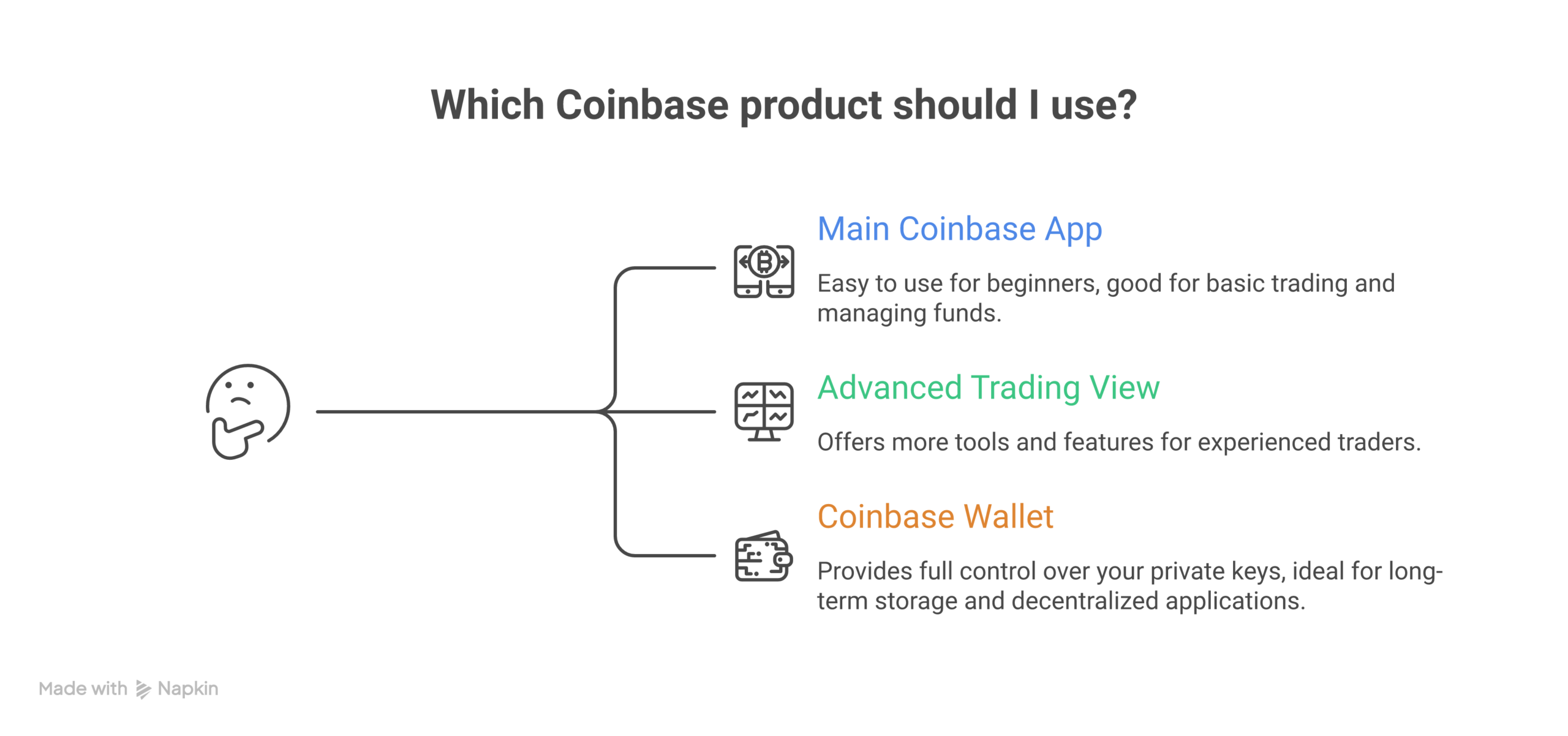
| Coinbase thing you use | Who holds the keys? | Who can support help the most with? | Good for… |
|---|---|---|---|
| Main Coinbase app | Coinbase (custodial) | Login, KYC, transfers, account problems | Total beginners, simple buying |
| Advanced trading view | Coinbase (custodial) | Account issues, trading questions, order behavior | People who want lower fees, charts |
| Coinbase Wallet (separate app) | You (non‑custodial) | App bugs, basic help, but not lost seed phrases | Users who want full self‑custody |
So your support path changes based on what you pick:
- If you stay in the main app, coinbase customer service can fix more things for you.
- If you move to Coinbase Wallet, you get more power, but you must solve more problems yourself.
- If you jump into advanced trading before you are ready, support can help, but you will feel lost a lot.
For a brand new user, a simple flow that works in 2026 is:
- Start with the main Coinbase app only
- Learn basic buys, sells, and small test withdrawals
- Study self‑custody with a guide like Bitcoin Walkthrough
- Then choose if you want Coinbase Wallet and more control
In the next section, we will look at the exact kinds of problems beginners hit in each product, and how to talk to coinbase support in a way that gets real help faster.
How to reach Coinbase customer service safely (step‑by‑step)
You know that little panic wave when a login does not work or a coin is “stuck”?
This is the moment lots of people Google random phone numbers. And that is where trouble starts.
Let’s walk through a calm, clear path to real coinbase support, not scammers pretending to help.
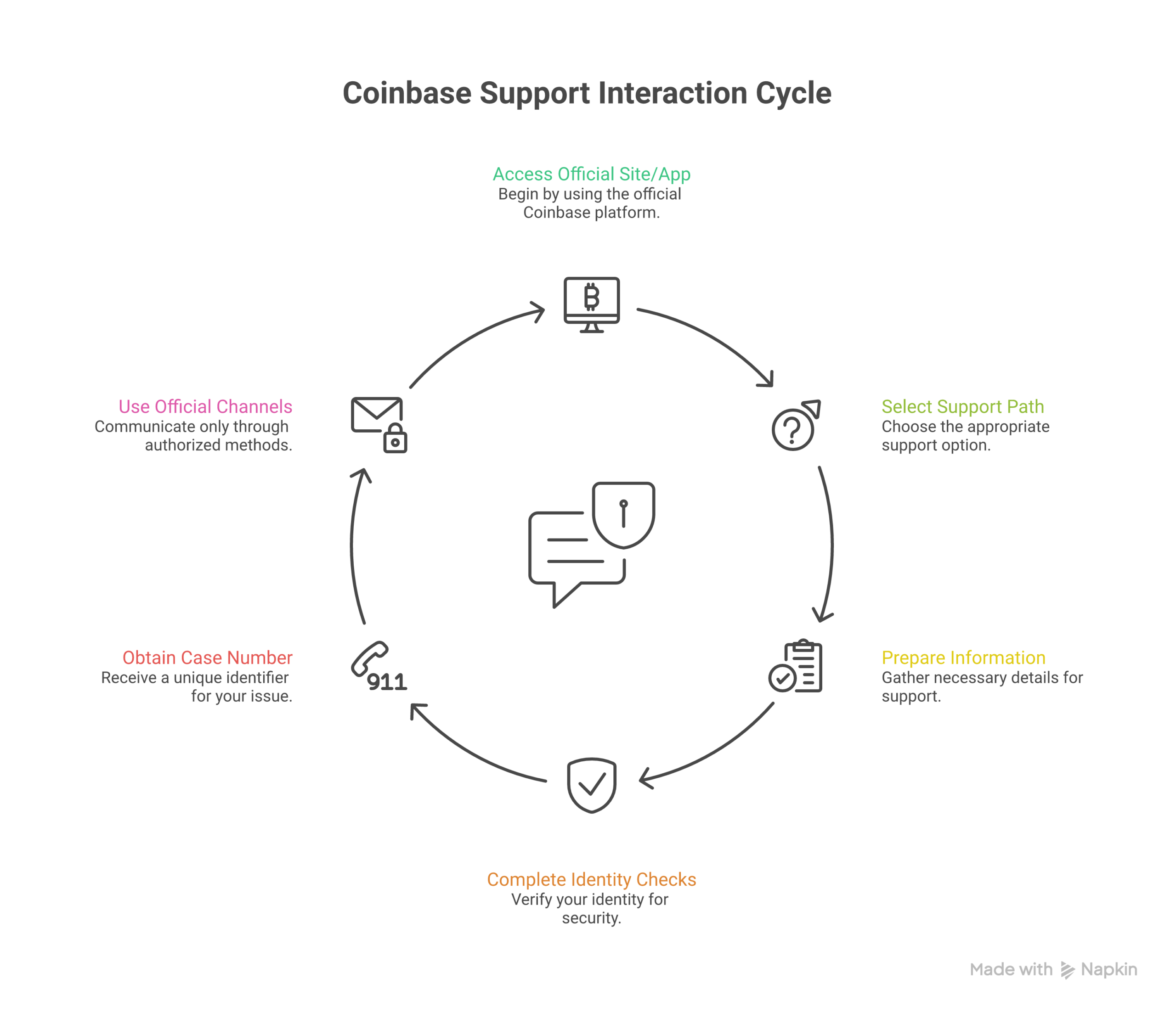
Step 1: Start from the real Coinbase site or app
First rule: you go to Coinbase, not “Coinbase comes to you.”
Do this:
- Open the Coinbase app you already use, or
- Type
coinbase.comby hand into your browser bar - Log in only from there
Then, inside the app or website:
- Tap your profile or settings
- Look for “Help” or “Support”
- Choose “Contact us” or “Get help”
From there, Coinbase will guide you into chat, email forms, or phone options. A directory like this list of Coinbase help desk contacts shows the main official paths: in‑app chat, phone, and a help center site.
If you find a phone number on some random blog that looks sketchy, skip it. Start from your logged‑in app instead. Every time.
Step 2: Pick the right support path for your problem
Inside the official help area, you will usually see choices like:
- “I cannot log in”
- “I have a question about a transaction”
- “My account is locked or restricted”
- “Card or bank issues”
Pick the one that matches your real pain. This helps coinbase customer service route you to the right team faster.
For the three Coinbase “things” we talked about earlier:
- Main Coinbase app: choose account, login, or payment options
- Advanced trading view: choose trading or order issues
- Coinbase Wallet app: choose “Wallet” or “self‑custody wallet” help, but remember they cannot fix lost seed phrases
If you are a Bitcoin Walkthrough student, this is where our checklists help. We map your issue to the right menu so you do not just click random stuff in panic mode.
Step 3: Get your info ready before you start
Support will move faster if you have a few details at hand. Take 3 minutes first.

Write down or screenshot:
- The email you use for Coinbase
- The country on your account
- The device you used (phone model or computer)
- Rough time of the problem (for example, “today at 3:15 pm”)
- Any error message text, word for word
- The transaction ID or hash if it is a transfer issue
You do not need to send them your seed phrase or full card numbers. Ever.
Think of it like this. You give them enough to find you and the problem, but not your “master keys.” Modern security guides say long, unique passwords and less sharing of secret data are key for safe logins, as explained in these updated NIST password guidelines.
Step 4: Go through identity checks (but watch what you share)
Real coinbase support will often:
- Ask you to confirm a code sent to your email or phone
- Ask for your full name and date of birth
- Ask you to confirm recent actions on your account
This is normal. They need to prove you are you.
But real support will not:
- Ask for your full seed phrase
- Ask for your 2‑step code outside the actual Coinbase login screen
- Ask you to “share screen” and then click on your wallet or bank app
- Tell you to read out your full card number and CVV over some random chat
If someone wants those secrets, you are probably not with Coinbase. Close the chat, hang up the call, and start again from the app. Coinbase itself warns users to only contact support through its own site or app and to avoid any help that arrives as an unexpected call or message, as they explain in this guide on spotting customer support scams.
At Bitcoin Walkthrough, we coach students on this part a lot. Because this is where many people fall for fake “coinbase scam text” messages.
Step 5: Open a support ticket and keep the case number
When you submit a form or chat, Coinbase will usually:
- Create a support ticket
- Give you a case number
- Send a copy to your email
Do this each time:
- Save that email in a “Coinbase” folder
- Copy the case number into your notes app
- Add one short line about the problem, in your own words
For example:
Case #456123 – bank transfer stuck, sent on 7 March
If you talk to coinbase customer service again later, give them that case number first. It shows you are already in the system and keeps you from re‑telling the whole story 5 times.
Step 6: Use official channels only (no mystery hotlines)
Crypto scammers love fake numbers. They also like weird “support” pages that show up in ads or spam emails.
Safe habits in 2026:
- Only call numbers you find after you log in to Coinbase or from the official help center
- Only use email addresses that end in
@coinbase.com - Do not trust “support” links in random Telegram, Discord, or text messages
- Do not call any “Coinbase help” number printed on a Reddit comment or YouTube description
If you see a number in a place you do not fully trust, treat it as fake until you confirm it inside your account.
Step 7: How to spot support impersonators fast
Here are quick red flags that the “helper” is not really coinbase support:
- They contacted you first, out of nowhere
- They rush you, saying “send it now or your funds are gone”
- They ask you to move coins to a “safe wallet” they control
- They want remote access to your screen
- They promise “special recovery” of coins you lost to an old scam
Real Coinbase staff:
- Wait for you to start the chat or ticket
- Work inside the official site or app
- Will not guarantee “profit” or trading tips
- Do not offer secret coinbase products that no one has heard of
If you are ever unsure, stop. Log out. Then come back through the steps in this guide.
Step 8: Use this support flow for every Coinbase product
No matter if you have:
- A simple main app account
- A coinbase business account
- Heavy use of advanced trading
- Or you just watch Coinbase news and market outlooks
The safe support path is the same:
- Start from the real app or
coinbase.com - Go to help or support from inside your account
- Pick the right topic
- Pass basic ID checks, but protect your secrets
- Save your case number and follow up there
Bitcoin Walkthrough builds these habits into your first steps with Bitcoin so you do not learn the hard way. Our goal is that by the time you ever need coinbase support for a real problem, this whole flow already feels normal and boring.
Which is exactly what you want with money problems. Boring, safe, and handled.
Create and verify your Coinbase account the right way
You know that feeling when you just want to “buy a tiny bit of Bitcoin” and suddenly Coinbase is asking for your ID, your selfie, and a code on your phone?
It can feel a bit scary. But this is one place where slow and careful wins. If you set up your account the right way on day one, life with coinbase customer service is 10 times easier later.
Let’s turn this into a simple, kid friendly checklist.
Step 1: Get your “sign up” basics ready
Before you even tap “Create account,” grab three things:
- A long, unique password that you do not use anywhere else
- A phone you can get texts or calls on
- An email you can check fast, that you control
For the password, skip short words like Summer2026. Use a long phrase with random bits, like SunCarpenter!BlueRiver89. Security experts at NIST now suggest long, easy to remember passphrases instead of short, “clever” ones, and say you should not reuse passwords across sites, as shared in these updated NIST password guidelines.
At Bitcoin Walkthrough, we actually have students write their first password on paper, then store that paper in a safe place at home. Old school, but it works.
Step 2: Prepare your ID and address documents
Coinbase has to check who you are. This is called KYC, or “Know Your Customer.” Crypto exchanges do this to follow anti money laundering rules and banking laws, not just to be nosy, as described in this guide on KYC and AML for crypto exchanges.
You will usually need:
- One photo ID
- Passport, or
- Driver’s license, or
- National ID card
- One proof of address (some countries)
- Bank statement
- Utility bill
- Tax letter
Make sure:
- Your name matches your Coinbase account name
- The document is not expired
- The text is clear and easy to read
If your name on Coinbase and your ID do not match, coinbase support will have to step in later to fix it. That can take days. Better to match things now.
Step 3: Set up a clean, safe environment
This part sounds boring, but it saves so many headaches. Before you start:
- Use your own phone or computer, not a public one
- Update your browser or app to the latest version
- Close random tabs, games, and unknown apps
- Sit in a bright room so selfie checks are clear
Think of it like “tidying” your digital desk. A clean device helps the ID upload work on the first try. It also lowers the chance that some old malware or shady browser plugin is watching you.
Bitcoin Walkthrough walks beginners through a “device hygiene” checklist so you are not doing KYC from a dusty old laptop at a coffee shop in someone else’s Wi‑Fi.
Step 4: Create the account and pass email checks
Now go to coinbase.com or open the official Coinbase app and:
- Tap “Get started” or “Sign up”
- Type in your full legal name, email, and country
- Set that long password you picked earlier
- Agree to terms (yes, the boring part)
Then:
- Open your email
- Find the Coinbase message
- Tap the verify link
If you do not see the email, check spam, but do not click on any weird “Coinbase gift” messages. Only click the one that matches what you just did.
Step 5: Finish identity verification without delays
Next, Coinbase will guide you through ID checks. To make this smooth:
- Use your phone camera if you can, it often works better
- Clean the camera lens with your shirt
- Place your ID on a flat, dark surface
- Take the picture in a bright, even light
Then for the selfie:
- Take off hats and sunglasses
- Look straight at the camera
- Keep a calm face and stay still for a second
If the app asks you to try again, do it slowly. Most “verification failed” messages are just blurry photos or bad light. Not fraud.
For some coinbase products, like cards or higher limits, Coinbase might ask for extra checks later. The smoother your first KYC, the less back and forth with coinbase customer service you will have.
Step 6: Turn on two factor (2FA) right away
Do not wait on this part. As soon as your account is live:
- Go to “Settings”
- Find “Security”
- Turn on two‑factor authentication
Pick a strong second step, like:
- An authenticator app (Google Authenticator, Authy, 1Password)
- Or at least SMS, if nothing else is ready yet
With 2FA, even if someone guesses your password, they still need your phone or code app. That single step stops a lot of hacks. NIST style security advice in 2026 treats extra login factors as a basic layer, not a fancy “feature,” as you can see in their Cybersecurity Framework overview.
At Bitcoin Walkthrough, we treat “no 2FA, no coins” as a house rule for beginners. It sounds strict, but your future self is going to be very happy you did this.
Step 7: Save your key info for future support
Once everything is set:
- Write down the email you used
- Note the country and region on the account
- Save which 2FA method you picked
- Store this note in a safe place
Why? Because if you ever need coinbase support for a locked login, a coinbase business account upgrade, or to ask about fees, these basics help coinbase customer service find you faster and confirm that the account is really yours.
Bitcoin Walkthrough gives students a small “Account Card” template for this. You can just make your own mini version in your notes app or on paper. Simple, but powerful.
Set it up right once, and most future problems become small support chats instead of full on panic events.
Common beginner issues, and how Coinbase support typically helps
You finally get through signup, you are ready to buy your first $20 of Bitcoin… and then something weird pops up on screen.
Totally normal. Every new user bumps into at least one “what is this?” moment with coinbase customer service.
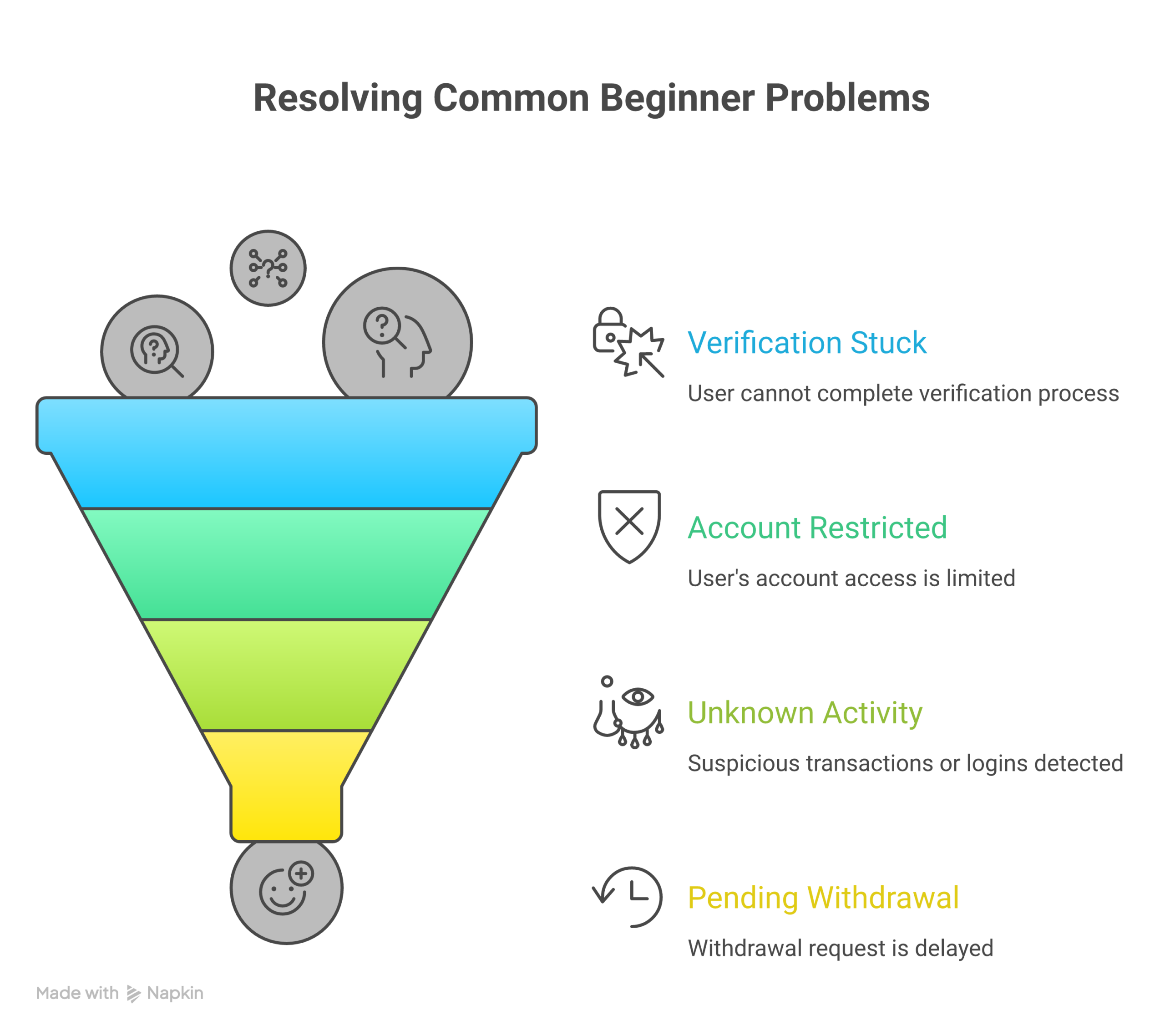
Let’s walk through the big ones and what Coinbase support usually does in each case.
1. “My verification is stuck”
You sent your ID. You took the selfie. Now it just says “In review” for hours.
This usually happens because:
- The photo was a bit blurry
- The name or address does not match your account
- Extra checks are running in the background
Crypto exchanges must follow strict KYC and AML rules so they need to review IDs and watch for risky activity, as explained in this guide on crypto exchange AML requirements.
How Coinbase support usually helps:
- They check the status on their side
- They tell you if you need to upload a new document
- They may reset the flow so you can try again
What you can do first:
- Re‑read your name and birthday on the account
- Check if your ID is expired
- Take new, bright photos before opening a ticket
At Bitcoin Walkthrough, we suggest you keep a tiny “KYC kit” folder on your phone with 2 or 3 clear ID photos. Then if coinbase support asks again, you are ready in seconds.
2. “My account is restricted or locked”
You log in and see “account restricted” or some actions are blocked. Scary, I know.
This can happen if:
- Coinbase spots activity that looks odd
- You changed phones or 2FA in a confusing way
- There is a delay while they review a transfer
Because exchanges must watch for risky patterns, they sometimes limit accounts first, then ask questions after, just like banks do.
How Coinbase support usually helps:
- They confirm it is really you
- They ask for a few extra details or documents
- They explain what is blocked and for how long
What to prepare before you contact coinbase customer service:
- A clear screenshot of the “restricted” message
- Your country, device, and what you were trying to do
- Any emails you got from Coinbase around the same time
If you later want higher limits or a coinbase business account, this same info history helps your case, since they already know your normal pattern.
3. “I see activity I do not know”
This is the nightmare one. You notice:
- A login from a strange place
- A crypto send you did not make
- A 2FA reset email you did not ask for
First, breathe. Then act fast.
Your quick steps before anything else:
- Change your password right away
- Turn on or check 2FA
- Log out of all other devices in settings
How Coinbase support usually helps:
- They freeze sends while they review
- They walk you through locking the account
- They check recent logins and actions
Coinbase also teaches users how to avoid fake “support” traps. They say you should only reach them through official links on the site and never trust surprise calls or DMs, as shared in their guide on spotting customer support scams.
In Bitcoin Walkthrough, we even have students practice saying, “I will not share my code with you” out loud, so the phrase feels natural if a scammer ever calls.
4. “My deposit or withdrawal is pending or failed”
Money stuff gets people stressed fast. You might see:
- Bank deposit “pending” for a long time
- Card buy declined
- Crypto send stuck on “pending”
This can be due to:
- Normal bank delays
- Extra checks because the amount is large for your history
- Network congestion for that coin
How Coinbase support usually helps:
- They confirm if the payment left Coinbase or not
- They tell you if you should wait or retry
- They explain any hold times or limits
Before writing to coinbase customer service, gather:
- The exact amount and coin
- Date, time, and your time zone
- Screenshots of the status page and any bank or wallet reference IDs
This kind of clear data often turns a long back‑and‑forth into one short answer.
5. How to contact Coinbase support the “safe” way
Because “Coinbase” is a big name, scammers love to pretend to be them. You might see a random “coinbase scam text” or fake phone number online. Ignore all of that.
Stick to:
- The help link inside the official app
- The support link on
coinbase.comwhen you are logged in - Their written help center and chat
If you like video, this short guide on YouTube walks through the main contact paths step by step: How To Contact Coinbase Support Easily (HELP GUIDE).
One more tip from Bitcoin Walkthrough: never Google “Coinbase phone number” and call the first thing you see. Some of those are fake. Go through the app instead so you reach real coinbase support.
6. When and how to escalate a case
Sometimes the first reply feels like a copy‑paste. Annoying, but common. Here is how to level up the help you get.
Before you reply again, collect:
- 2 or 3 clear screenshots
- Short timeline: “On Monday at 3pm, I did X, then saw message Y”
- Any error codes or reference numbers
Then, in your message:
- Stay calm and short
- Put the main problem in the first line
- Add your timeline under it like a mini list
Example:
Main issue: Bank withdrawal still pending after 4 days.
Timeline:
- Friday 2pm: Started withdrawal for $250
- Friday 2:05pm: Got email confirmation
- Today, app still shows “pending”
This format makes life easier for the human on the coinbase customer service side. Clear cases get solved faster, and sometimes moved to more senior staff without you needing to ask.
At Bitcoin Walkthrough, we even give students a simple “support message template” they can copy, so they do not try to write a whole novel at 1am when they are stressed.
Handled well, most beginner issues turn into small learning moments, not full disasters. And each time you use coinbase support the smart way, you get a little more confident for the next step in your Bitcoin journey.
Security basics: keep your Coinbase account and Bitcoin safe
You know that tiny “uh oh” feeling when you type your password and think, “Please let this work”? With Bitcoin and coinbase products, that feeling is bigger, because real money is on the line. So let’s slow things down and set up the boring stuff that actually keeps you safe.
Think of this section like seatbelts and airbags. Not fun, but you really want them ready before a crash.
1. Strong, simple password rules that work
You do not need a “crazy hacker” brain for this. Just follow a few clear rules. Modern password guides, like the updated NIST style tips, suggest long, unique passwords instead of short, tricky ones with weird symbols everywhere, as shared in this guide on 2026 NIST password recommendations.
For your Coinbase account:
- Use a password that is at least 14 characters
- Make it a sentence you can remember, like “myfirstbitcoinwas20dollars!”
- Do not reuse it from email, Netflix, or anything else
- Store it in a password manager, not in Notes or on a sticky note
Quick rule I tell Bitcoin Walkthrough students:
“One site, one password.”
If one site gets hacked, the others stay safe.
2. 2FA: your “second lock” on Coinbase
Next, you want a second lock. This is called 2FA, or two factor auth. Password is step one. A code on your phone is step two.

On Coinbase, you can pick:
- Text message codes (better than nothing, but not great)
- Authenticator app, like Google Authenticator or Authy (much better)
- Hardware security key, like a YubiKey (best for bigger amounts)
If you are just starting with $20 in Bitcoin, an authenticator app is a very good balance. At Bitcoin Walkthrough, we teach a simple rule:
- Under $200: Authenticator 2FA is fine
- Over $2000: Start thinking about a hardware key
To set this up inside Coinbase:
- Open the app, go to Settings
- Tap “Security”
- Turn on 2FA with an authenticator app
- Write down backup codes in a safe place
Do this before you buy more Bitcoin. Not after something scary happens.
3. Keep your phone and laptop “clean”
Coinbase can have great security, but if your phone is full of junk apps and old software, that is like leaving your front door open.
Basic device hygiene:
- Turn on a phone lock (PIN, face, or fingerprint)
- Update your phone and computer often
- Only install apps from the official app stores
- Do not root or “jailbreak” your phone
- Use Wi‑Fi you trust, not random free airport networks for big moves
If you ever log in on a shared or work computer, always log out when you are done, and never save your Coinbase password there.
4. Spotting fake coinbase customer service
Scammers love to pretend they are coinbase support. They send a “coinbase scam text” that says things like “Your account is locked, click here fast!!”
Here is how to smell the fake stuff:
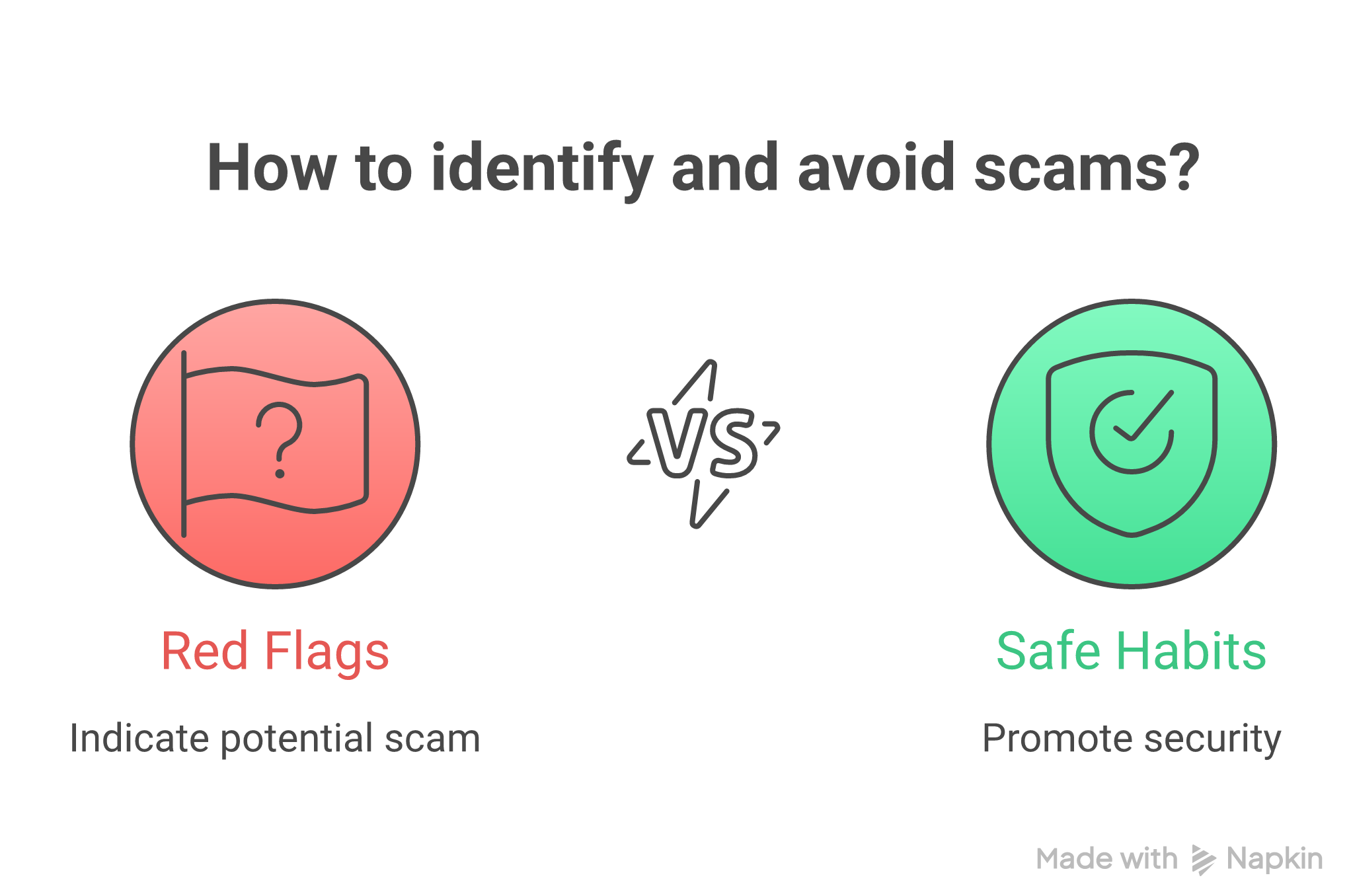
Red flags:
- Text or email that says “urgent” and wants you to click a link
- Message comes from a weird address, not
@coinbase.com - They ask for your password, 2FA code, or seed phrase
- They say “call this phone number” that is not on the official site
Safe habits:
- Never click a link in a random text about Coinbase
- Instead, open the Coinbase app yourself and check for alerts
- Type
coinbase.comby hand in your browser, do not trust Google ads - Only reply inside the app or help center, not from surprise DMs
Financial services need to follow tight security rules, so real support staff are trained to avoid risky tricks and will never ask for your full login details, as noted in overviews of 2026 financial cybersecurity rules.
In Bitcoin Walkthrough, we even have a “three word test” for support:
If they ask for “password”, “2FA code”, or “seed phrase”, you hang up.
No debate. You are done.
5. Check the website link like a hawk
Scam sites try small spelling tricks:
coinbsae.comc0inbase.com(with a zero)coinbase-help-login.com
They look close. They are not Coinbase.
Before you type your email and password:
- Look for
https://www.coinbase.comin the address bar - Tap the little lock next to it on mobile
- If anything feels “off”, close it and open the app instead
If you came from “coinbase news”, Reddit, or Twitter, this check is extra key, because scammers plant fake links in comments and replies all the time.
6. Social tricks that pretend to be support
Some scams do not use tech at all. They use people. This is called social engineering.
Typical move:
- You post on X (Twitter) “Help, my Coinbase account is locked!”
- A fake “Coinbase Support” account replies in 30 seconds
- They say “DM us” and then ask you to “verify” with codes or your seed phrase
Real coinbase customer service will not:
- DM you out of the blue
- Ask to “remote in” to your computer
- Ask you to install strange apps
Best move:
- Never share your screen with a stranger about money
- Keep your seed phrase and 2FA codes totally private
- Only start support chats from inside the official Coinbase app or site
At Bitcoin Walkthrough, we tell students:
“If they rush you, pause. Real support lets you think.”
Pressure is a scammer’s best friend.
7. Coinbase vs your own wallet: who holds the keys?
Later, you might hear about “custodial” and “non‑custodial” wallets.
- With Coinbase, it is a custodial wallet. They hold the keys for you.
- With many other wallets, you hold your own keys and seed phrase.
A beginner guide on custodial vs non‑custodial wallets explains that with non‑custodial, you are fully in charge, which is powerful but also risky if you lose your recovery phrase.
For your first steps with Bitcoin and coinbase products, starting with Coinbase as custodian is fine, as long as you:
- Lock your account with a strong password and 2FA
- Watch for fake support messages
- Keep your phone and email secure
Later, when you are ready to learn about your own wallet, Bitcoin Walkthrough walks you through that shift slowly, with checklists and practice moves so you do not rush.
8. Quick safety checklist before you buy more Bitcoin
Before you move past that first $20, run through this mini list:
- Strong, unique Coinbase password set
- Authenticator 2FA turned on
- Phone and laptop updated and locked
- You know how to reach real coinbase support inside the app
- You know to ignore any “coinbase scam text” or random phone numbers
If you can tick all of those, you are already safer than a lot of people in crypto. And if any box feels fuzzy, that is exactly the kind of gap we fix step by step inside Bitcoin Walkthrough, so you are not guessing on security as you grow.
You do not need to be perfect. You just need to be a little harder to trick than the average person. That alone protects a lot.
Fees, limits, and funding: what beginners should expect
You know that moment when you go to buy something, tap “confirm”, then think, “Wait… how much are they charging me??” With Coinbase, you do not want that surprise. Fees are not bad by themselves, but mystery fees are.
So let’s keep this simple and clear, so you know what you are paying, how much you can move, and why some things feel slow.
1. The 3 main fee buckets on Coinbase
For a normal beginner, you will usually see three kinds of costs:
| Fee type | What it is in plain words | Who gets it |
|---|---|---|
| Trading fee | Coinbase’s cut when you buy or sell | Coinbase |
| Spread | Tiny price gap built into the quote | Coinbase |
| Network fee | Cost to use the Bitcoin network | Bitcoin miners, not Coinbase |
A current breakdown of Coinbase fees in 2026 shows that trading fees on some Coinbase products start around about 0.04% for “maker” orders and 0.02% for “taker” orders, which is close to what other big exchanges charge, as seen in this Coinbase fee overview.
For most beginners using the simple “Buy” button:
- You will not see “maker” or “taker” words
- You will just see a “Coinbase fee” line and the final price
- You might also see a separate “network fee” when sending Bitcoin out
Quick mental trick:
If you are buying or selling, expect a Coinbase fee.
If you are sending Bitcoin to another wallet, expect a network fee.
In Bitcoin Walkthrough, we tell students to always pause for 5 seconds on the review screen and read every line. That small habit saves real money.
2. How your payment method changes fees and speed
The way you fund your Coinbase account really affects what you pay and how fast money shows up.
Common methods you might see:
- Bank transfer (ACH or local bank transfer)
- Debit card
- Credit card (sometimes blocked or higher risk)
- Other crypto you send in
Very rough pattern for many countries:
| Method | Fees usually | Speed usually | Good for… |
|---|---|---|---|
| Bank transfer | Lower | Slow, 1 to 3 days | Bigger amounts, less rush |
| Debit card | Higher | Fast, often instant | Small, quick buys |
| Credit card | Highest | Fast, but risky | Not ideal for beginners |
So if you are buying your first $20 just to try things, a debit card might feel fine. If you are putting in $500 or more, a slower bank transfer can save you extra fees.
If you ever feel lost, you can open Coinbase support pages or use coinbase customer service chat inside the app to see fee info that matches your country. Do not trust random fee charts from some 2021 Reddit post.
3. Why deposits or withdrawals might be delayed
This part annoys people, but there are real reasons.
Sometimes Coinbase will say things like “funds on hold” or “withdrawal pending”.
Here are common causes:
-
Bank transfer not cleared yet
Your bank sent the money, but Coinbase is still waiting for full confirmation. They let you “see” it early, but may lock withdrawals until it settles. -
New account or new device
Fresh accounts, or logins from a new phone or country, can trigger extra checks. This is to stop fraud and account takeovers. -
Big jump in amount
If you normally move $50 and suddenly try $5,000, systems may slow things down to double check it is really you. -
Network traffic
For Bitcoin withdrawals, sometimes the Bitcoin network itself is busy, so network fees and confirm times go up a bit.
This is where coinbase customer service can actually help. If a delay feels odd, open the app, go to Help, and see if there is a clear note, like “funds available in X days”. If not, you can contact coinbase support from there, not from some random phone number you found under a “coinbase news” comment.
4. How limits work, and where to see yours
Every account has limits. These are caps like:
- How much you can buy per day or per week
- How much you can send out in 24 hours
- How much you can withdraw to your bank
Limits change based on:
- Your country and local rules
- How much ID you have given Coinbase
- How long your account has been open
- Past history, like if payments ever failed
To see your real numbers:
- Open the Coinbase app
- Go to your profile or Settings
- Look for “Limits” or “Account limits”
- Read each line slowly before you plan a big move
If you use a coinbase business account later, limits and checks can be even tighter, since business rules are more strict. That is normal.
As of 2026, Coinbase also has some advanced products for big traders, like x402, which charge super small custom fees such as $0.001 per special transaction, as reported in this x402 fee update. You do not need that for your first steps, but it shows how many different fee layers exist behind the scenes.
5. Simple fee and limit habits for beginners
To keep things stress free:
- Always read the fee line before you tap “confirm”
- Try a tiny test first, like $5, before a bigger buy or withdrawal
- Check your current limits once a month, so nothing is a surprise
- If something looks wrong, go to coinbase support inside the app, not from a “coinbase scam text” or fake number
Inside Bitcoin Walkthrough, we walk through real screenshots and practice “dry runs” with pretend amounts, so by the time you move your own money, fees and limits feel normal, not scary.
Next up, you will be ready to think about your longer plan with Bitcoin, not just the first purchase screen.
Using Coinbase with self-custody: sending, receiving, and backup basics
You know that “oh no” feeling when you send money and then think, “Please go to the right place…”?
With Bitcoin, that feeling can be bigger, so we want to shrink it.
Here is the deal. Buying on Coinbase is one thing. Moving Bitcoin to your own wallet and backing it up is a different skill. Not hard. Just new.
Custodial vs self-custody, in kid-level terms
Think of two kinds of wallets:
| Type | Who holds the keys | Who can help if you mess up | Feels like… |
|---|---|---|---|
| Custodial | Coinbase | Coinbase support | Money in a bank account |
| Self-custodial | You | No one can fix your keys | Cash in a safe at home |
On Coinbase, your normal account is a custodial wallet. A company like Coinbase holds the private keys and signs transactions for you, kind of like a bank signs wires for you. In a self-custodial wallet (also called non-custodial), you hold the private keys yourself, so you are the actual owner and operator of that Bitcoin, as explained in this beginner guide on custodial vs non-custodial wallets.
So what does this mean for coinbase customer service?
-
In a custodial setup, Coinbase can often help with:
- Resetting your login
- Freezing your account if there is a hack
- Sometimes reversing things on their own books
-
In self-custody, Coinbase support:
- Cannot see your private keys
- Cannot send your coins for you
- Cannot restore your seed phrase if you lose it
If you pick self-custody, you are the boss. Which is cool. But you also become the help desk.
First safe steps: sending from Coinbase to your own wallet
Here is a low stress way to practice moving Bitcoin from Coinbase to a self-custody wallet. You can use Coinbase Wallet, or a simple mobile wallet that lets you write down a seed phrase.
Step 1: Set up the self-custody wallet
- Install the wallet app from the official site or app store
- Open it and follow the setup steps
- It will show you a receive screen with a long Bitcoin address and a QR code
Step 2: Start with a tiny test from Coinbase
Inside Coinbase:
- Tap Bitcoin
- Tap “Send”
- Paste the receive address from your wallet or scan the QR code
- Start with a very small amount, like $5 or $10
- Read the fee and network details, then confirm
Then wait. It might take a few minutes, sometimes longer if the Bitcoin network is busy.
Once it lands in your self-custody wallet and you see it confirmed, celebrate a little. That tiny test just taught you how to move value across the world.
Later, if you have a coinbase business account or more advanced coinbase products, the idea is the same. You just move from a custodial spot to your own wallet, with extra checks and limits on the business side.
Backup basics: seed phrase do’s and don’ts
Here is the part people love to skip. Please do not.
Your self-custody wallet will show you 12 or 24 words. That is called a seed phrase. These words are the master key to your Bitcoin.
If someone gets these words, they can take your coins.
If you lose these words, no one, not even coinbase support or the wallet company, can get your coins back.
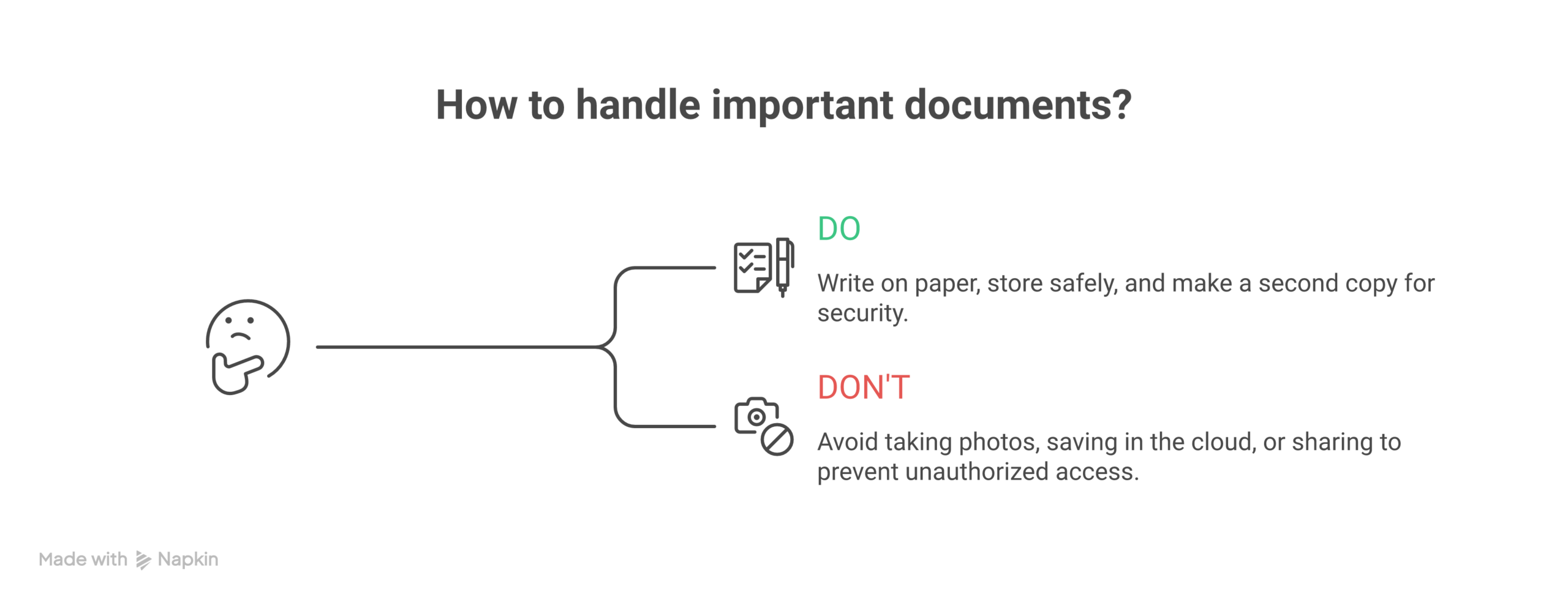
Simple do’s:
- Do write the words on paper, clearly
- Do store the paper in a dry, safe place, not your desk at work
- Do make a second copy and keep it in a different safe spot
- Do read each word twice as you write it down
Simple don’ts:
- Do not take a photo of your seed phrase
- Do not save it in email, cloud notes, or chat apps
- Do not type it into “help” sites or Google forms
- Do not share it with anyone who says they are from Coinbase jobs, coinbase customer service, or “coinbase news support”
If you ever get a coinbase scam text or email that asks for your seed phrase, that is not real support. That is someone trying to drain your wallet. Close it. Do not reply.
In Bitcoin Walkthrough, we actually practice a fake backup drill. We have students write down “practice” words first, so backup steps feel normal before they ever touch real money.
What support can and cannot do once you self-custody
Here is a quick cheat sheet so you do not expect magic from support.
| Problem | Can Coinbase help? | Who is in charge now? |
|---|---|---|
| Forgot Coinbase login password | Usually yes | Coinbase support |
| Lost access to phone for Coinbase app | Usually yes | Coinbase support |
| Sent Bitcoin to wrong address from Coinbase | Very rarely | Mostly blockchain rules |
| Lost self-custody seed phrase | No | You only |
| Gave seed phrase to a scammer | No | You only |
So if you think something is off inside Coinbase, you can use the coinbase support chat or help center in the app.
If the problem is in your self-custody wallet, there is no “undo” button. That is why we start with tiny tests, double checks, and slow, boring seed backups.
Bitcoin Walkthrough keeps hammering this one idea:
Move small, read slowly, and treat your seed phrase like the keys to your house.
Once you are comfy sending, receiving, and backing up, you are not just “using Coinbase” anymore. You are actually using Bitcoin the way it was built to work. And that feels pretty good.
Stay informed: official news, maintenance, and status checks
You know that weird moment when Coinbase feels “slow” and you think, “Did I break it?”
Most of the time, you did not. The system is just busy or getting an update.
Instead of freaking out or hunting for some random coinbase customer service phone number you found on Google, here is how to check what is really going on.
Step 1: Start with official Coinbase places
Before you trust a text, email, or “support number” from a search ad, check Coinbase’s own stuff first.
Good starting spots:
-
In the Coinbase app
- Open the app
- Tap your profile or settings
- Look for “Help” or “Support” and any banners about delays or maintenance
-
Coinbase site and products page
- Go to the main site and the Coinbase products page
- If there is a big change, a new feature, or planned work, they often talk about it there or in linked blog posts
-
Coinbase blog and Bytes
- For bigger news and updates on new Coinbase products or listings, Coinbase uses blogs and email like Coinbase Bytes
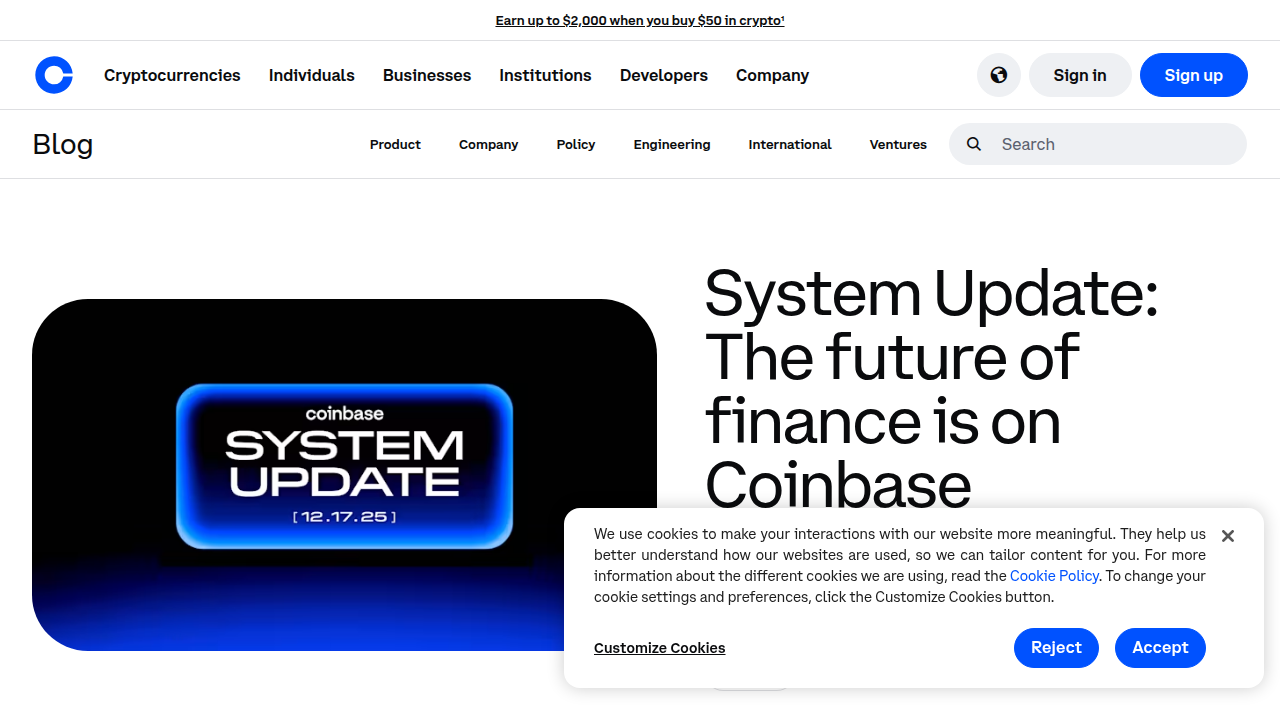
- Posts like the one on 2026 crypto themes to watch give a feel for what they are rolling out and when things might feel busy
If a message you got does not match what you see in the app or on the site, treat that message as sus.
Step 2: Check if it is “you” or “everyone”
Before you assume your Coinbase business account or personal account is in trouble, do a quick status check.
Use this simple flow:
- Try closing and reopening the app
- Try logging in from a different device or browser
- Ask a trusted friend, “Is Coinbase acting weird for you too?”
- If both of you see slow loads or errors, it might be a general issue, not your account
Many people skip this and jump straight to some sketchy number that claims to be coinbase support. That is how scams start. A safer way is to only use contact details from trusted directories that list official Coinbase help desk contacts.
Step 3: Tell scams from real coinbase support
You will see fake things that look like coinbase news, coinbase jobs, or “urgent coinbase customer service” all over the internet.
Real Coinbase support will:
- Point you back to the app or website to log in
- Not ask for your password or seed phrase
- Not tell you to “share your screen and click here fast”
If someone texts you from a random number, or you get a coinbase scam text that says “call now or your account is closed,” slow down. Real support scams are common enough that Coinbase made a guide on how to spot and stop fake customer support.
Want a short walk through of real contact paths? This video guide on how to contact Coinbase support easily gives a nice overview of what to tap and where.
Step 4: Make “status checks” a habit
Here is a tiny habit we push in Bitcoin Walkthrough:
Before you panic or send any private info:
- Check the app
- Check the official site or blog
- Check with one trusted friend
- Only then think about calling or chatting coinbase customer service
It takes maybe 2 minutes. But it can save you from sending your money and data to a scammer who just bought an ad spot.
We practice this in class too. Students see fake emails, fake coinbase news posts, and fake “support” popups, then learn to slow down and go back to official channels first. It feels basic, but in 2026, this simple skill is one of the best safety tools you can have.
Summary
This guide walks Bitcoin beginners through using Coinbase safely, contacting real support (not scammers), securing accounts, understanding fees, and moving toward self-custody—all in plain English.
Leave a Reply